|
 |
 |
 |
What Is the NeuroTrend Indicator
The NeuroTrend Indicator for MT4 is a compact, price-action–driven trend and signal tool built to help traders quickly spot bullish and bearish regimes, filter noise, and highlight short-term reversal opportunities. It combines two adaptive trend lines with complementary histogram bars and discrete arrow signals so you can see trend direction, confirmation strength, and likely turning points directly on your chart.
Designed for traders who want a simple visual workflow, NeuroTrend removes ambiguity from quick decisions: it draws two dynamic reference lines that adapt to recent highs and lows, paints histogram levels that reflect intrabar bias, and plots arrows when the market shifts from one regime to another. The indicator is suitable for beginner-to-intermediate traders who want a readable, no-nonsense view of short-term momentum and trend alignment across timeframes.
This tool belongs to the category of best custom indicators for MT4 that don’t overload the screen with complexity — instead, it prioritizes clear signals and fast interpretability so you can focus on trade management.
See also: Next Move Indicator
How It Works — NeuroTrend Indicator
NeuroTrend uses a short lookback and a slightly longer lookback in parallel to create a dual-line trend filter. In practice you’ll see:
- Two dynamic trend lines (a faster and a slower reference). These lines represent recent extremes (recent highs and lows) recalculated as price evolves. One line reacts quickly to price changes, the other responds a bit slower — the interaction between them generates context.
- Histogram bars that show price relationship to those two lines within each bar. These histogram outputs make it easy to read intrabar bias — for example, whether price is generally trading above both references or stuck below.
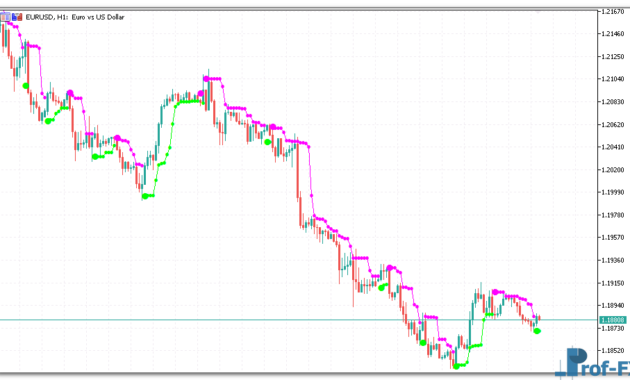
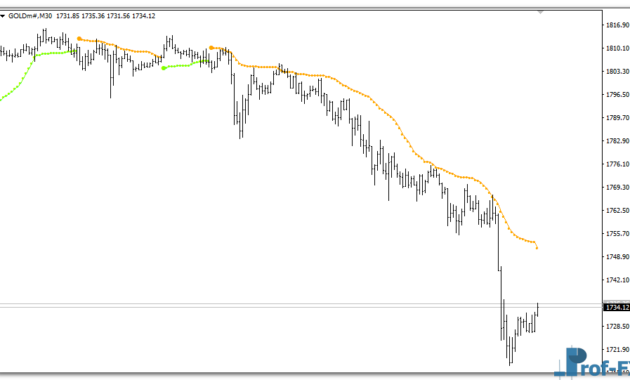
- Arrow signals placed on the chart when the indicator detects a regime shift: a bullish arrow when price clears and stays above both lines, and a bearish arrow when price drops and remains below both lines.
Key behavioral rules (how traders should read the visuals):
- Bullish regime: When price is above both NeuroTrend lines and histogram reads positive, market momentum favors long trades. The indicator will mark bullish arrows at the point of regime confirmation.
- Bearish regime: When price sits below both lines and the histogram is negative, the bias favors shorts. A bearish arrow appears at confirmation.
- Neutral or choppy: When price lies between the two lines or histograms are mixed, the indicator implicitly warns that the market is indecisive — a time to avoid trend-following entries or to tighten risk.
Because the lines are derived from recent highs/lows rather than fixed moving averages, NeuroTrend emphasizes price structure — it reacts to genuine shifts in market extremes rather than smoothing them away. That makes the indicator useful for traders who prefer signal clarity and faster adaptation to changing conditions.
NeuroTrend Indicator Settings
NeuroTrend is intentionally lightweight and configurable so traders can tune it to their preferred timeframes and instruments without getting lost in technicalities. Here are the practical settings you will encounter and how to use them:
- Primary lookback (Z) — Controls the short lookback window used to find recent highs and lows. Use smaller values (e.g., 1–5) for scalping or very fast intraday signals; increase it for slightly smoother behavior on higher timeframes.
- Secondary lookback (Z1) — The longer lookback that produces the second, less-sensitive trend line. Setting Z1 larger than Z increases robustness and reduces false flips, making it useful for swing or intraday trading.
- Offsets (S, S1) — Small point offsets applied to the high/low calculations to avoid price whipsaws and reduce noise. Leave at zero for raw price behavior or add a small pip offset in volatile conditions to filter microflickers.
- Visual options — The indicator typically exposes colors and styles for its two lines, histograms, and arrows. Choose contrasting colors to keep the chart legible in active sessions.
Practical tuning tips:
- For scalping on M5–M15, set Z small (e.g., 2–5) and Z1 moderately larger (e.g., 8–15) so the faster line captures quick momentum while the slower line keeps you on the right side of trend.
- For swing or intraday (H1–H4), bump Z1 higher to avoid being whipsawed by intraday noise.
- Always backtest settings visually on multiple currency pairs or instruments before trading live. Small parameter shifts can meaningfully change signal frequency and reliability.
How Traders Use NeuroTrend — Practical Ideas
- Trend filter & entries
Use NeuroTrend as a primary trend filter. Trade only in the direction indicated by the arrows and alignment of price above/below both lines. Enter on minor pullbacks that respect the faster line and place stops beyond the opposite line. - Confirmation with an oscillator
Pair NeuroTrend with an oscillator (RSI, Stochastic) to confirm momentum exhaustion when the indicator signals a reversal. This reduces false signals in low-liquidity or ranging markets. - Support for trade management
Use the slower NeuroTrend line for trailing stops. Because the line adapts to recent structure, it produces reasonable, dynamic stop locations that follow price without being overly tight. - Multiple timeframe alignment
Check NeuroTrend on a higher timeframe for direction, and on a lower timeframe for entry precision. Aligning both increases the odds of sustained moves. - Risk management
Never treat the indicator as a stand-alone guarantee. Use fixed risk per trade, and size positions so that a failed NeuroTrend signal does not threaten account health.
How to Instal “NeuroTrend” Indicator for Metatrader 4
- Open your Metatrader 4 platform.
- Download and save the “NeuroTrend” indicator to your desktop or any other folder located on your local computer.
- Choose “File” then “Open Data Folder” (Ctrl + Shift + D) on your Metatrader 4 platform.
- Explore the following folder: MQL4 > Indicators.
- Copy and paste the “NeuroTrend” indicator into this folder.
- Restart Metatrader 4.
- “NeuroTrend” indicators are stored by default in the custom indicator folder.
- To access these indicators, go to Top Menu > Insert > Indicators > Custom.
- In order to add a “NeuroTrend” indicator to any of your Metatrader 4 charts, you will need to select a forex chart with one mouse click, then go to Top Menu > Insert > Indicators > Custom > click the “NeuroTrend”.
- Done!
See a complete guide How To Install Metatrader 4 Custom Indicators
Final Thoughts & Call to Action
NeuroTrend for MT4 offers a clean, no-friction way to read short-term trend structure and catch regime changes without drowning in indicators. It suits traders who value clarity: two adaptive lines, supporting histograms, and clear arrow signals create a practical workflow for entries, exits, and stop placement.
If you want to test how NeuroTrend performs on your favorite pairs and timeframes, try it in a demo account first and tune the lookback values to match your style.
You can try this tool directly by downloading it below and evaluating live signals on your MT4 platform.
Free Download NeuroTrend indicator for Metatrader 4
- neurotrend.zip
- Size: 278 kb
- Platform: MT4 | Format: .mql4/.ex4 | File: dir9mt4 | Request Remove!