 |
 |
 |

|
See also: Monster Oscillator
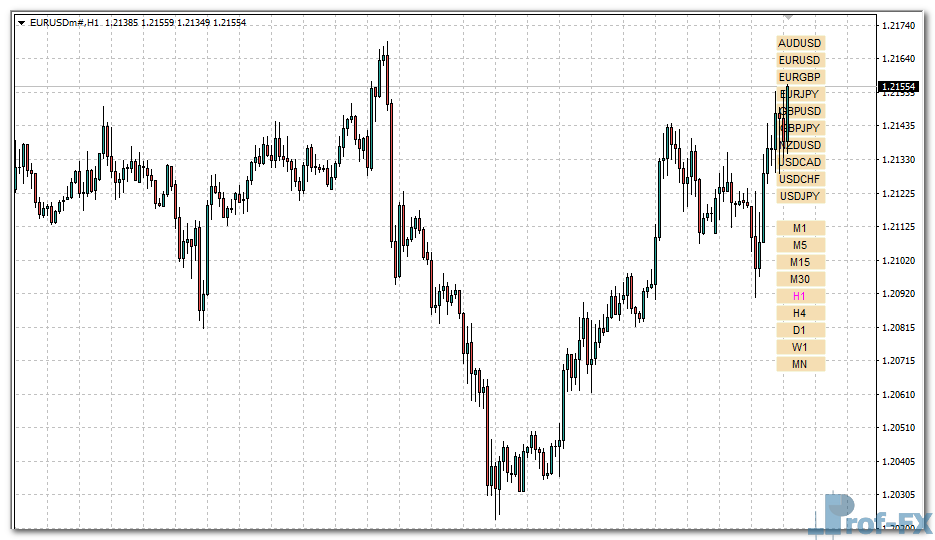
How to Instal “Markets & Time Frames Change” Indicator for Metatrader 4
- Open your Metatrader 4 platform.
- Download and save the “Markets & Time Frames Change” indicator to your desktop or any other folder located on your local computer.
- Choose “File” then “Open Data Folder” (Ctrl + Shift + D) on your Metatrader 4 platform.
- Explore the following folder: MQL4 > Indicators.
- Copy and paste the “Markets & Time Frames Change” indicator into this folder.
- Restart Metatrader 4.
- “Markets & Time Frames Change” indicators are stored by default in the custom indicator folder.
- To access these indicators, go to Top Menu > Insert > Indicators > Custom.
- In order to add a “Markets & Time Frames Change” indicator to any of your Metatrader 4 charts, you will need to select a forex chart with one mouse click, then go to Top Menu > Insert > Indicators > Custom > click the “Markets & Time Frames Change”.
- Done!
See a complete guide How To Install Metatrader 4 Custom Indicators
Free Download Markets & Time Frames Change indicator for Metatrader 4
- markets-time-frames-buttons.zip
- Size: 23.7 kb
- Platform: MT4 | Format: .mql4/.ex4 | File: dir9mt4 | Request Remove!
https://www.prof-fx.com/assets/mt4/dir9mt4/markets-time-frames-buttons.zip